
How to Generate Your First AI Fashion Image
A hands-on, step-by-step walkthrough that takes you from a blank prompt to a polished AI fashion image. Covers model selection, prompt anatomy, aspect ratios, and download options.

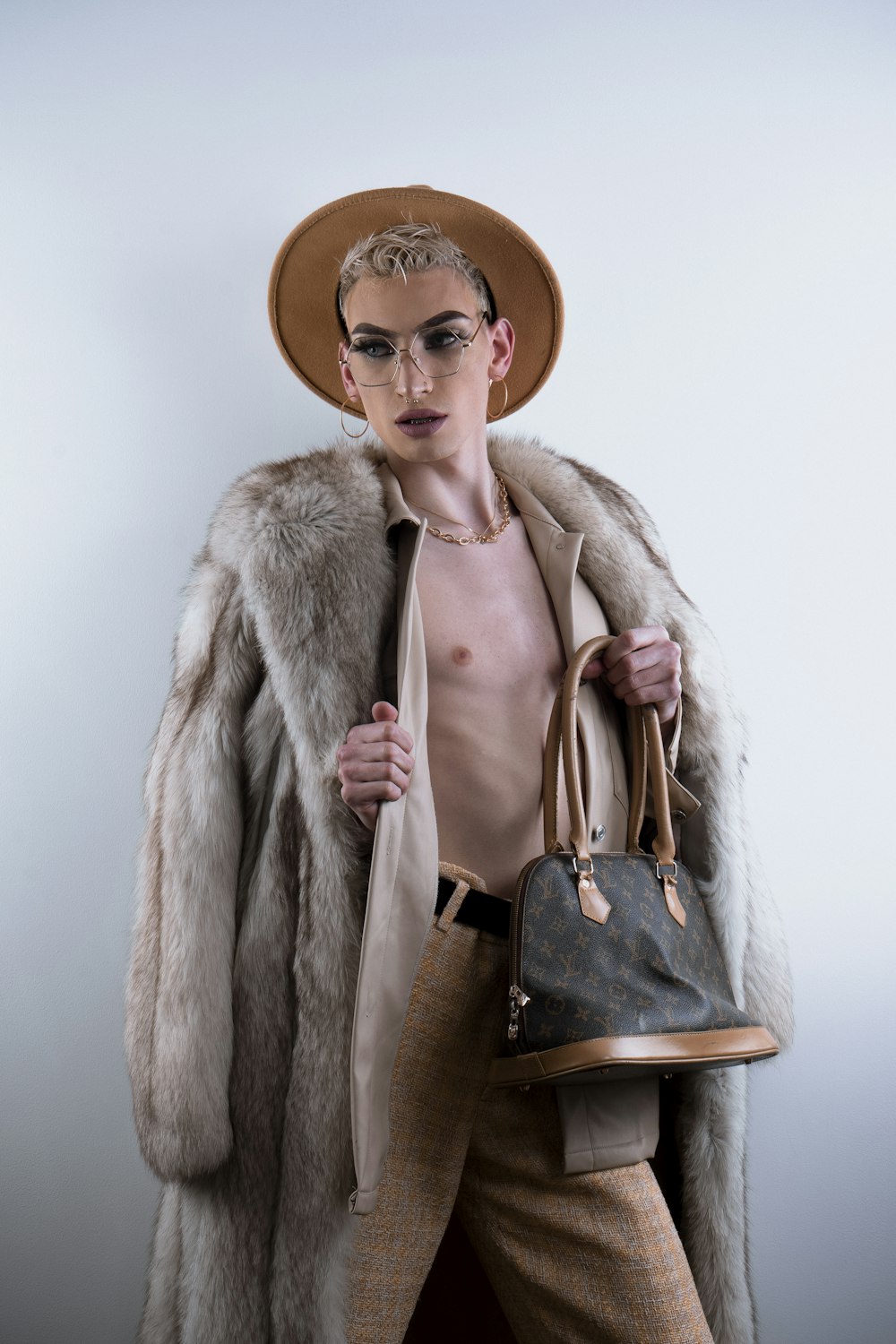
Made with Fittins AI · View this image
Creating your first AI fashion image is an exciting milestone, and the quality of that first image often surprises newcomers. In this tutorial, we will break down the entire process into clear, repeatable steps: choosing the right model, writing a structured prompt, configuring generation settings, and polishing the final output. By the end, you will have a professional-quality fashion image ready to download and use.
Step 1: Choosing Your AI Model
Fittins AI gives you four AI model tiers, each with different strengths. The tier you choose has a significant impact on the detail, speed, and credit cost of your output. Here is a quick comparison to help you decide:
Model Quick Reference:
- Turbo -- The fastest and most affordable tier, available on every plan. Use it for rapid prototyping and prompt testing.
- Default -- The balanced all-rounder, available on every plan. A 1K image costs 40 credits. Perfect for everyday use and a great balance of quality and cost.
- Premium -- Higher fidelity for hero images and campaign shots. Available for images from Creator Starter. Higher credit cost.
- Ultra -- The top tier for final production images and editorial spreads. Available from Creator Business. Highest credit cost.
- Quality -- Chosen separately from the tier. Images are 1K on every plan; 2K, 4K and 8K are available from Creator Starter.
- Same tiers for video -- Video generation (from Creator Kickstart) uses the same tiers; Premium video starts at Creator Pro and Ultra at Creator Business.
- Credit cost -- Images cost 30-100 credits depending on the tier and quality you choose.
First-Timer Recommendation
Start with Default. It delivers good quality at a moderate credit cost on every plan, giving you quick feedback as you learn prompt writing. Once you are comfortable, move up to Premium or Ultra (if your plan includes them) for final production images.
Step 2: Anatomy of a Great Fashion Prompt
A prompt is your creative brief to the AI. The more specific and structured your prompt, the closer the output matches your vision. We recommend the 5-layer approach: Subject, Wardrobe, Environment, Lighting, and Technical Quality.
Define the Subject
Start by describing who appears in the image. Be specific about demographics, pose, expression, and energy. Example: "A confident woman in her late 20s with short natural hair, looking directly at camera with a slight smile, three-quarter body shot".
Detail the Wardrobe
This is where fashion AI shines. Describe every visible garment with fabric type, color, fit, and construction details. Example: "wearing a double-breasted camel wool overcoat with wide lapels over a cream cashmere turtleneck, paired with high-waisted charcoal wide-leg trousers and tan leather Chelsea boots". Precision here directly translates to output quality.
Set the Environment
Place your subject in a specific location. Vague backgrounds produce vague results. Example: "standing on a rain-wet cobblestone street in Paris with blurred Haussmann buildings in the background, a vintage Citroen parked to the right".
Describe the Lighting
Lighting makes or breaks fashion photography, and the same applies to AI generation. Example: "overcast natural light with soft shadows, subtle warm color temperature, gentle rim light from a street lamp behind the subject".
Add Technical Quality Modifiers
Finish with keywords that signal the desired output quality. Example: "editorial fashion photography, shot on Hasselblad medium format, 85mm f/1.4, shallow depth of field, rich color grading, 4K resolution, Vogue editorial style".
Step 3: Putting It All Together
Here is how a complete, well-structured prompt looks when you combine all five layers:
A confident woman in her late 20s with short natural hair, looking directly at
camera with a slight smile, three-quarter body shot, wearing a double-breasted
camel wool overcoat with wide lapels over a cream cashmere turtleneck, paired
with high-waisted charcoal wide-leg trousers and tan leather Chelsea boots,
standing on a rain-wet cobblestone street in Paris with blurred Haussmann
buildings in the background, overcast natural light with soft shadows, subtle
warm color temperature, editorial fashion photography, shot on Hasselblad
medium format, 85mm f/1.4, shallow depth of field, rich color grading, 4KCompare this with a basic prompt like "woman wearing a coat on a street". The difference in output quality is dramatic. The 5-layer structure gives the AI clear direction on every visual element, leaving far less to chance.
Step 4: Configure and Generate
Before hitting Generate, check your settings. Every generation needs an AI model (pick one from the library, or one of your custom characters for brand consistency) and 1 to 3 product photos, alongside your prompt (up to 1,500 characters). Select the appropriate aspect ratio (portrait 2:3 for full-body shots, square 1:1 for social media, landscape 16:9 for banners). Choose your quality level based on whether this is an exploration run or a final output: 1K on every plan, with 2K, 4K and 8K from Creator Starter.
Aspect Ratio Guide
Portrait (2:3 or 3:4) works best for full-body fashion shots. Square (1:1) is ideal for Instagram feeds and product grids. Landscape (16:9) suits website banners and hero sections. Match your aspect ratio to the final use case before generating.
Step 5: Review, Iterate, and Download
Your image typically appears in about a minute. Take a moment to evaluate it against your vision. Check fabric accuracy, lighting consistency, facial quality, and overall composition. If something is off, tweak the relevant part of your prompt and regenerate. It is normal to produce a few variations before selecting your best output.
Once you have an image you love, download it as a PNG. If you need a larger file, generate it again at 2K, 4K or 8K quality (from Creator Starter); the new take will differ slightly, so choose quality up front when you can. You can also run a video generation with the same AI model and products (from Creator Kickstart).
Success Tip
Save your best prompts. When you find a prompt structure that consistently produces excellent results, copy it and create variations by swapping out the wardrobe or setting while keeping the proven structure intact. This is how professionals build efficient, repeatable workflows.
The best AI fashion images come from prompts that paint a complete picture: who is there, what they are wearing, where they are, how the light falls, and what camera captured it.
— Fittins AI Team