

Virtual try-on for clothes, shoes and accessories
Virtual try-on with Fittins AI shows how your products look when they are worn. Upload a photo of a garment, a pair of shoes or a bag, choose who should wear it, and the AI dresses the model in it, with realistic fit, folds and light.
Brands use it to check a design on a body before sampling, to show every colour of a product on a model, and to create on-model images for products that were only ever photographed flat or on a hanger.
Products tried on with Fittins AI
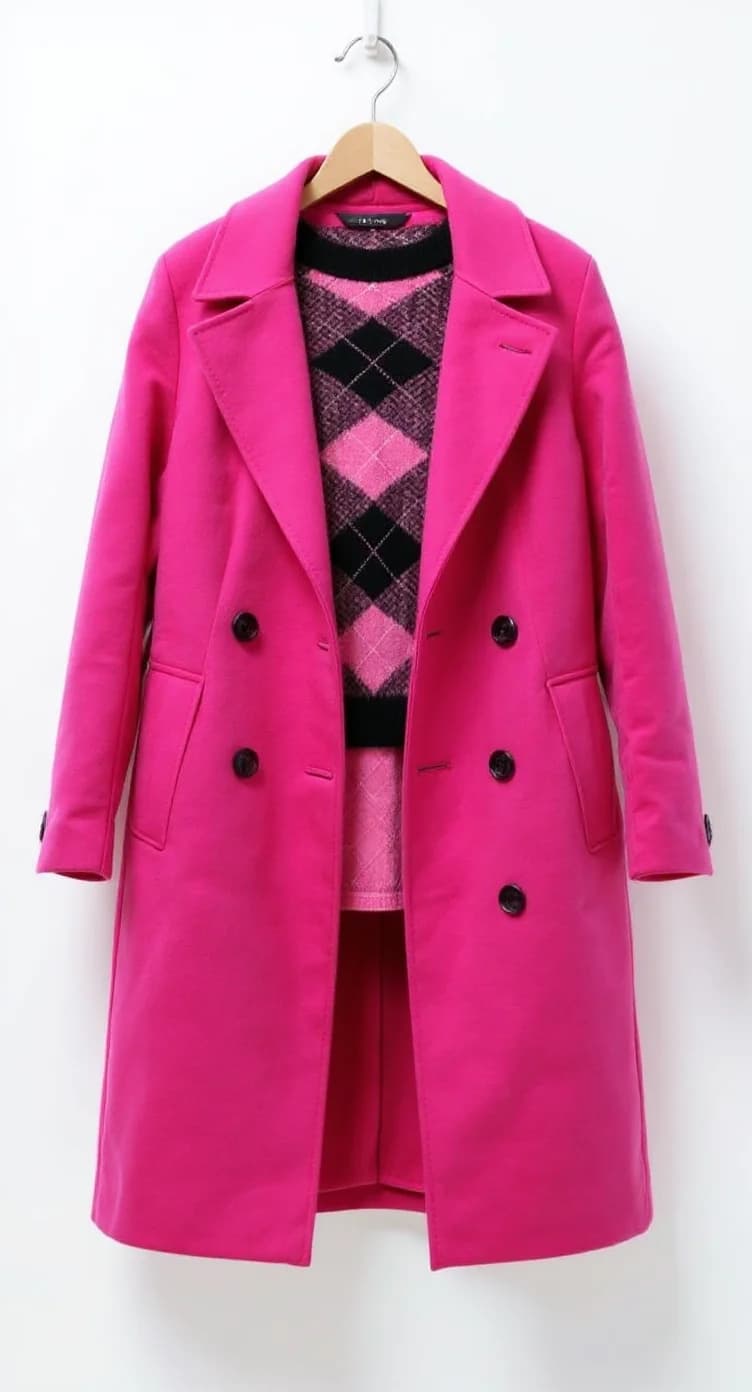
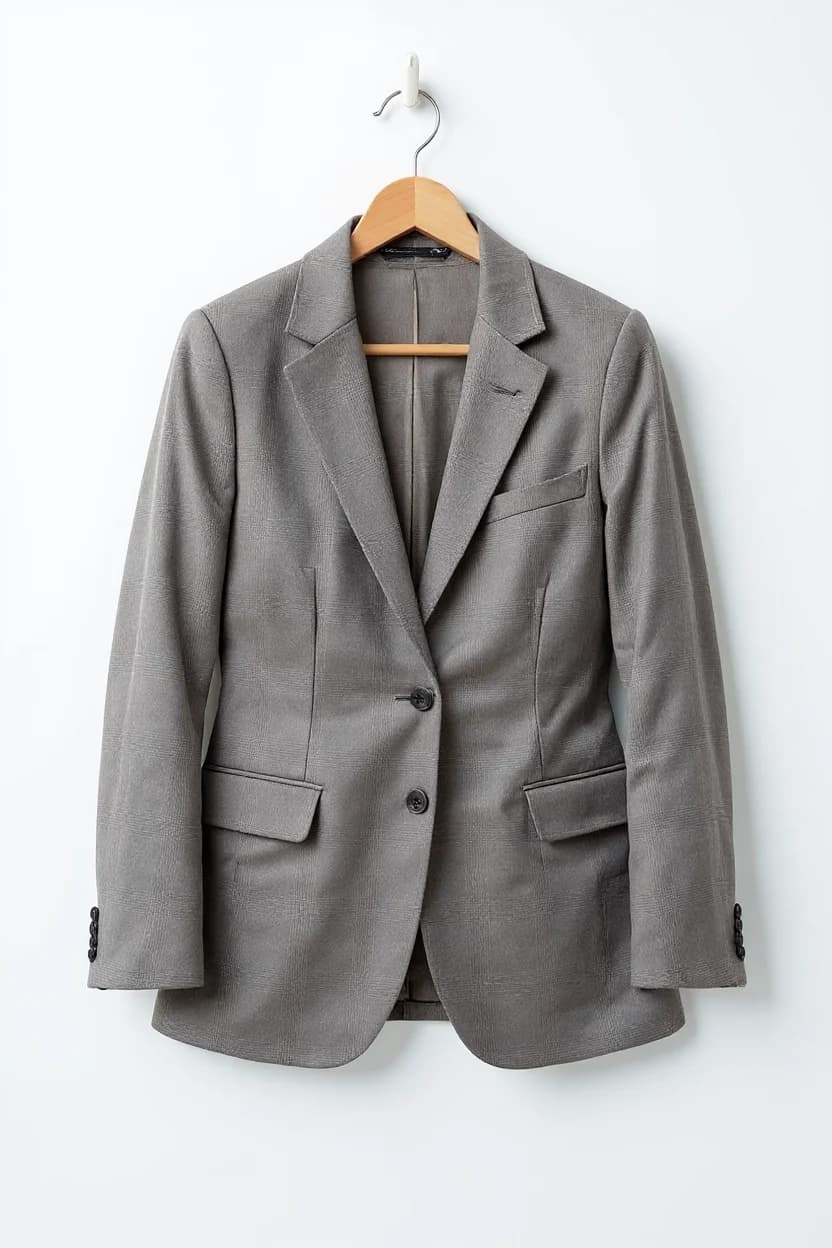
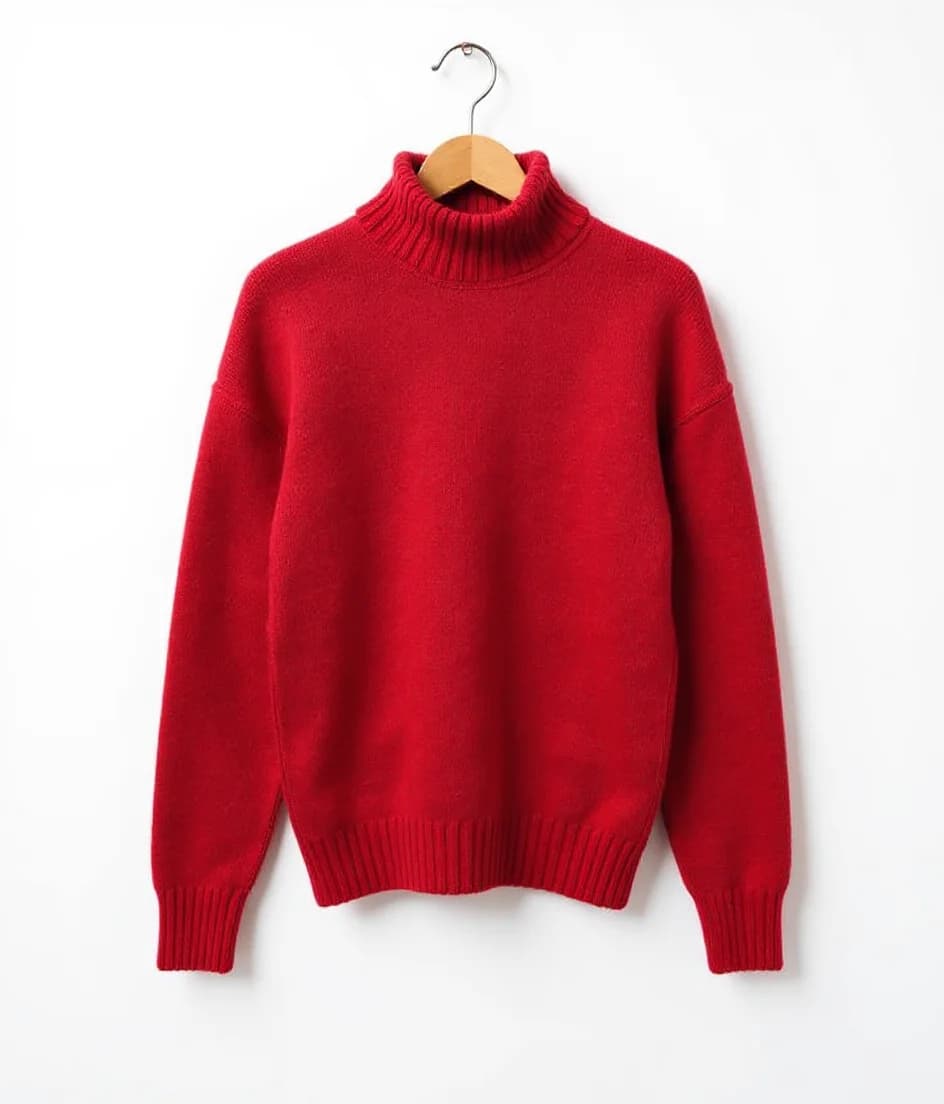
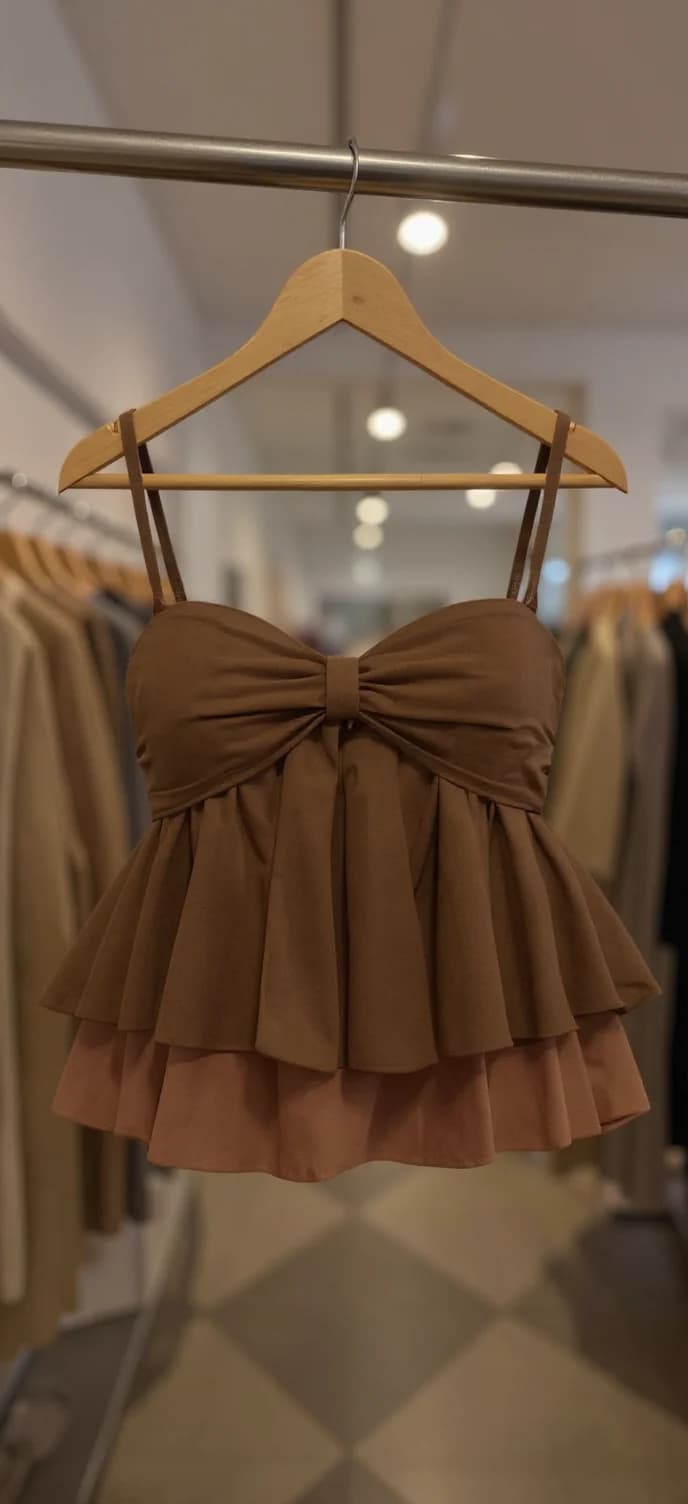
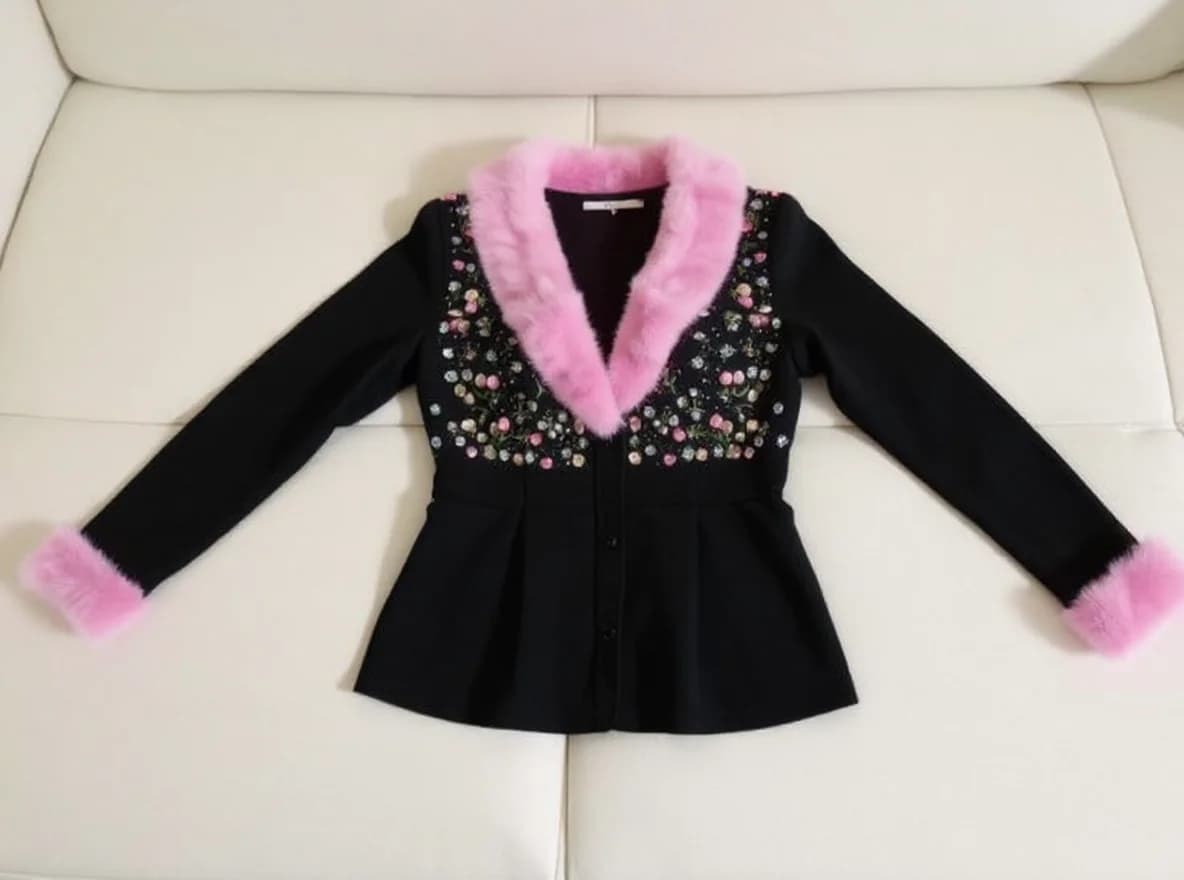
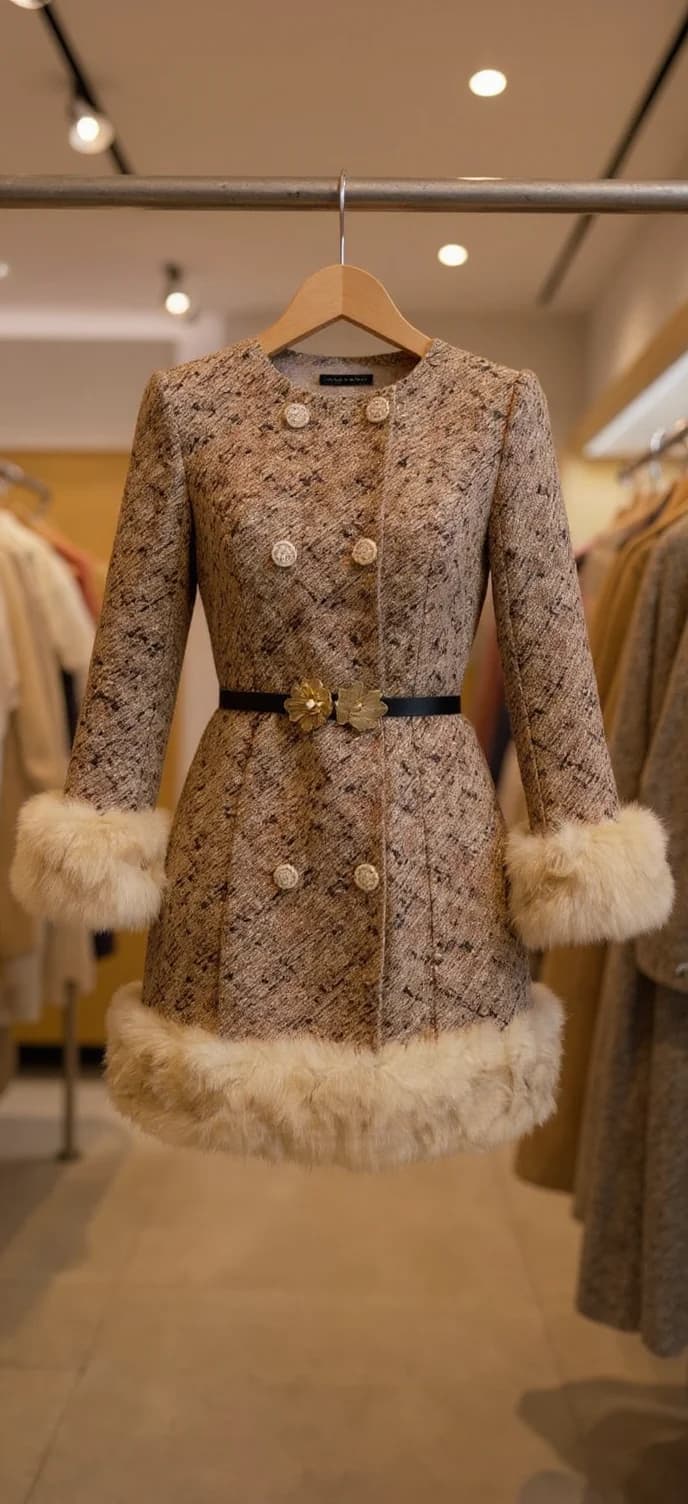
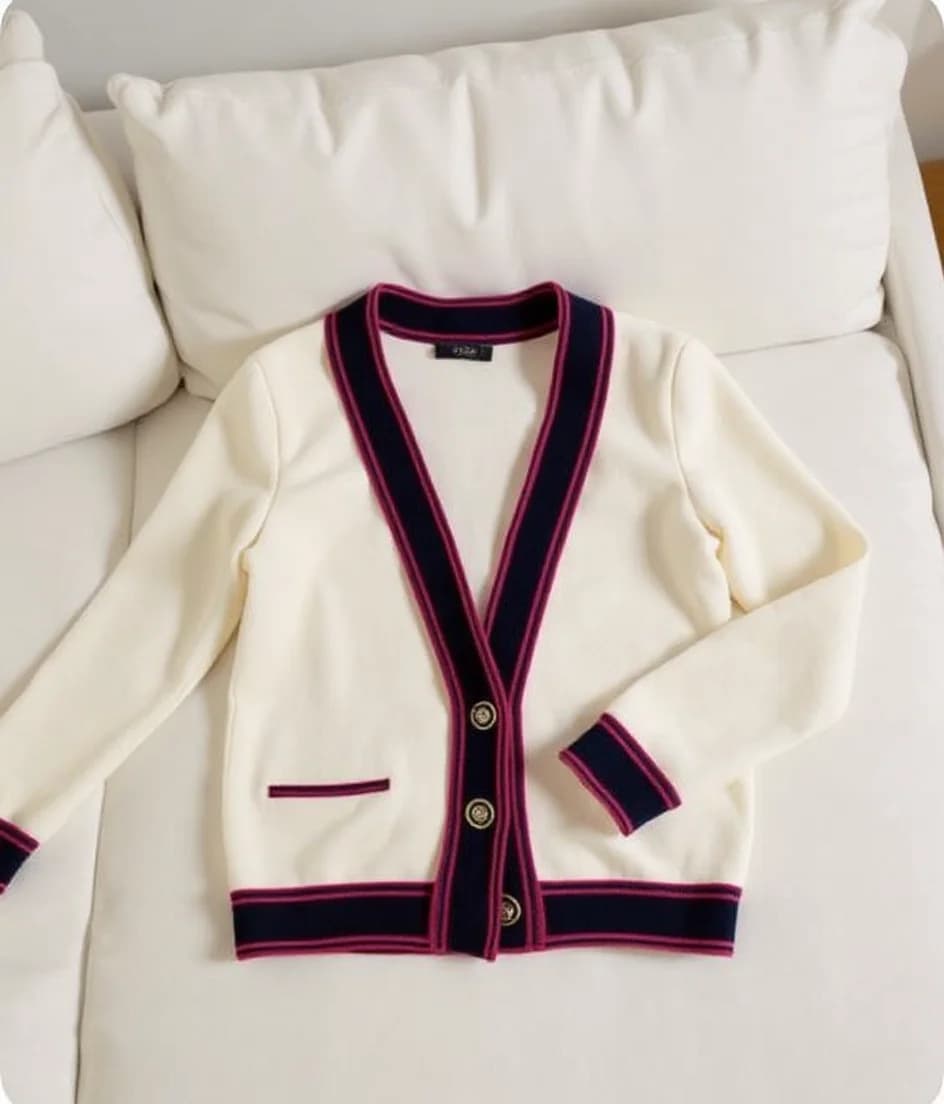
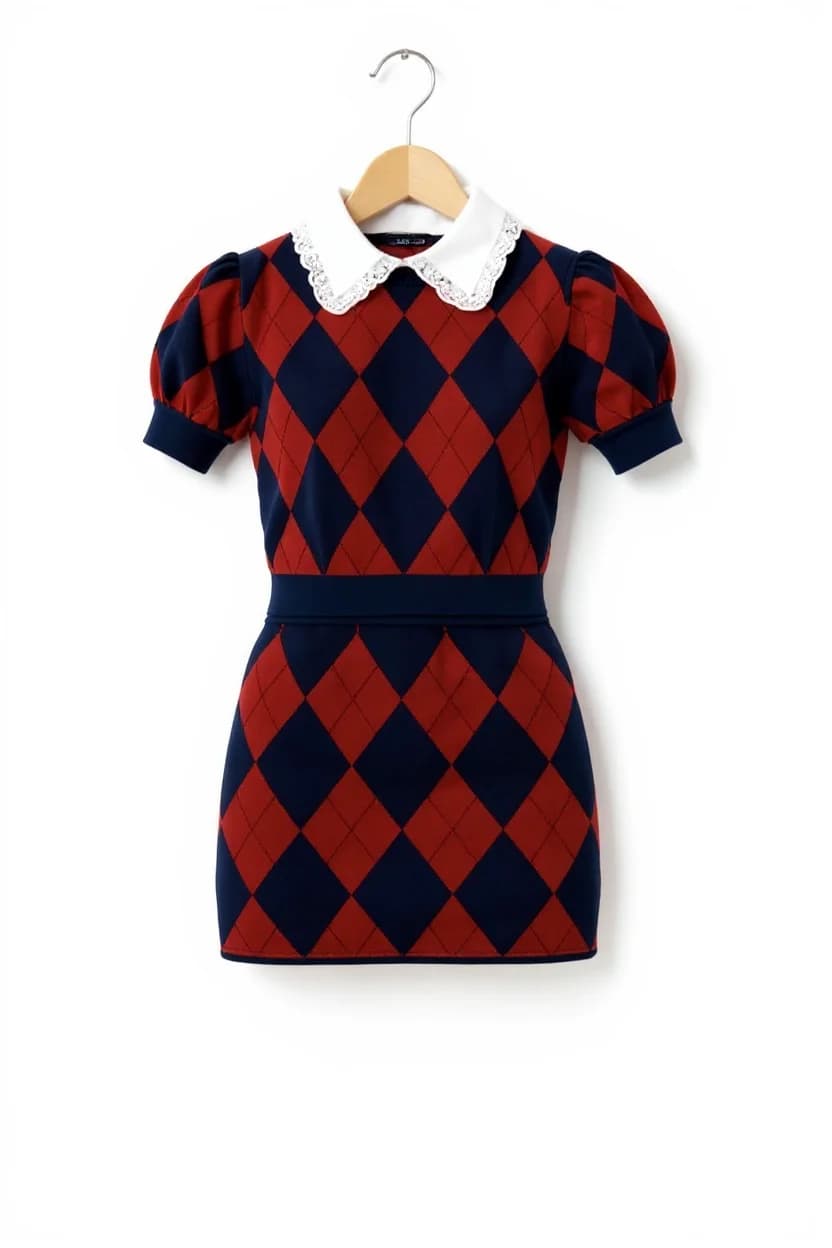
The small picture in each card is the product photo that went in; the large one is the result. Click any card for the details.


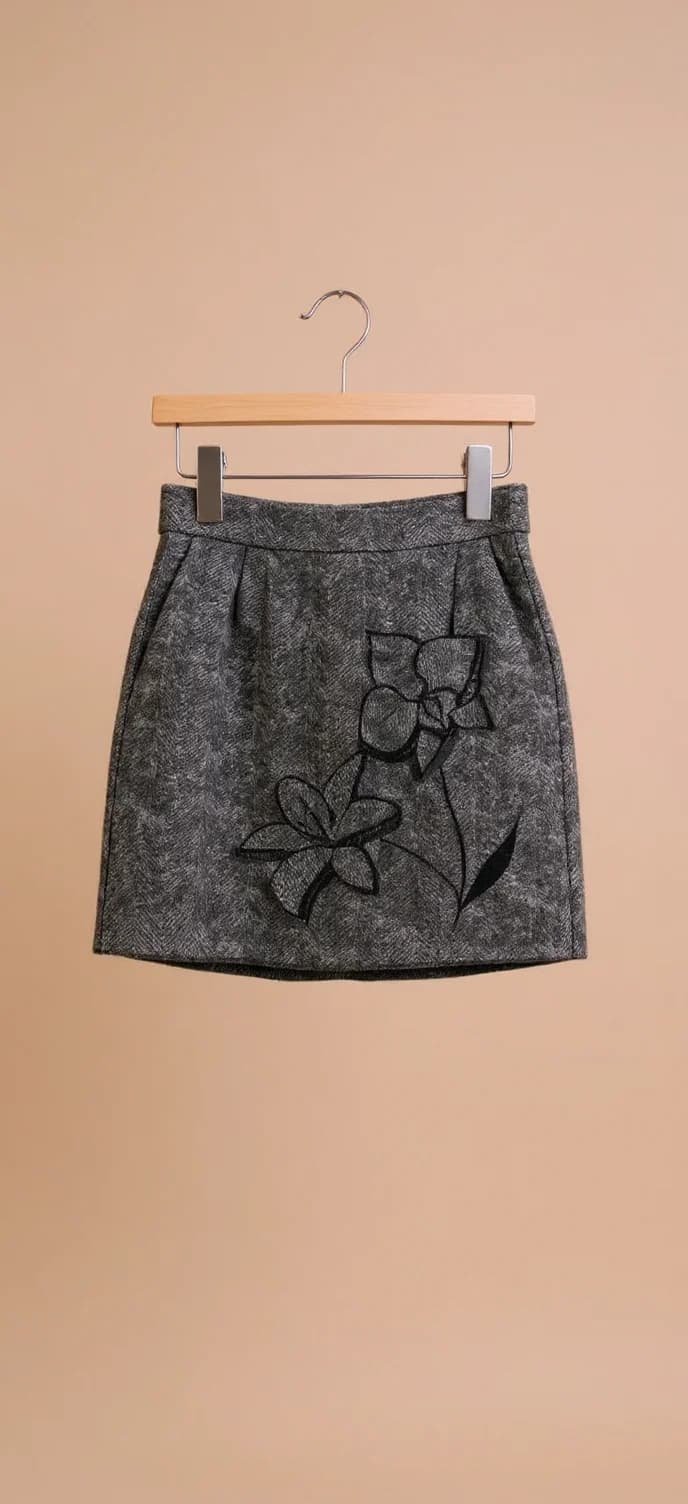

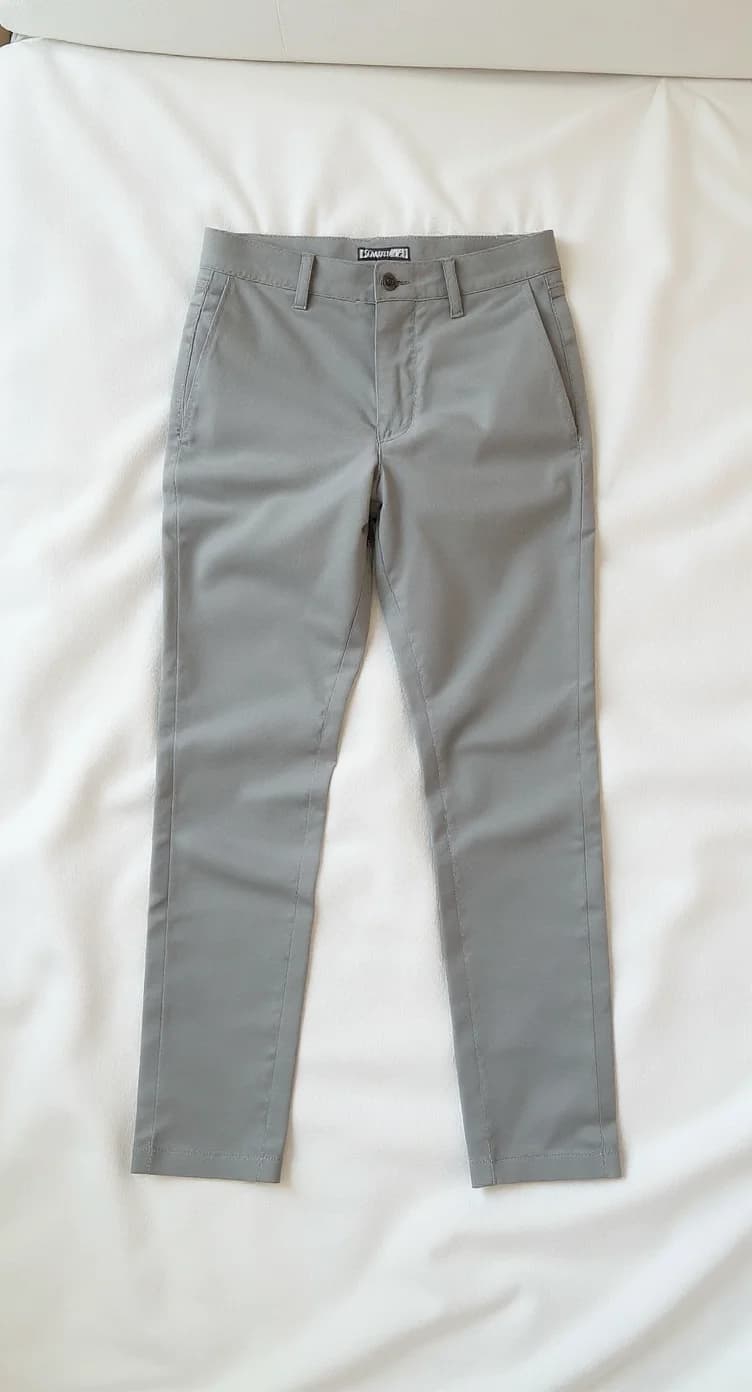

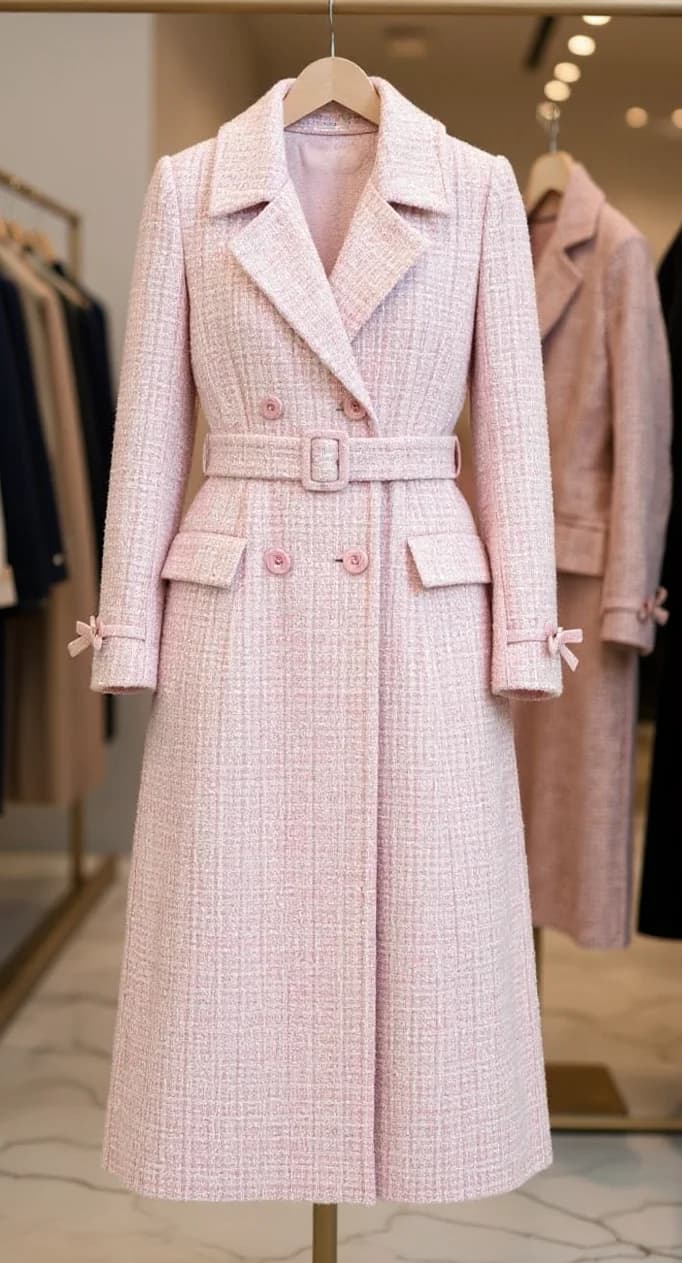

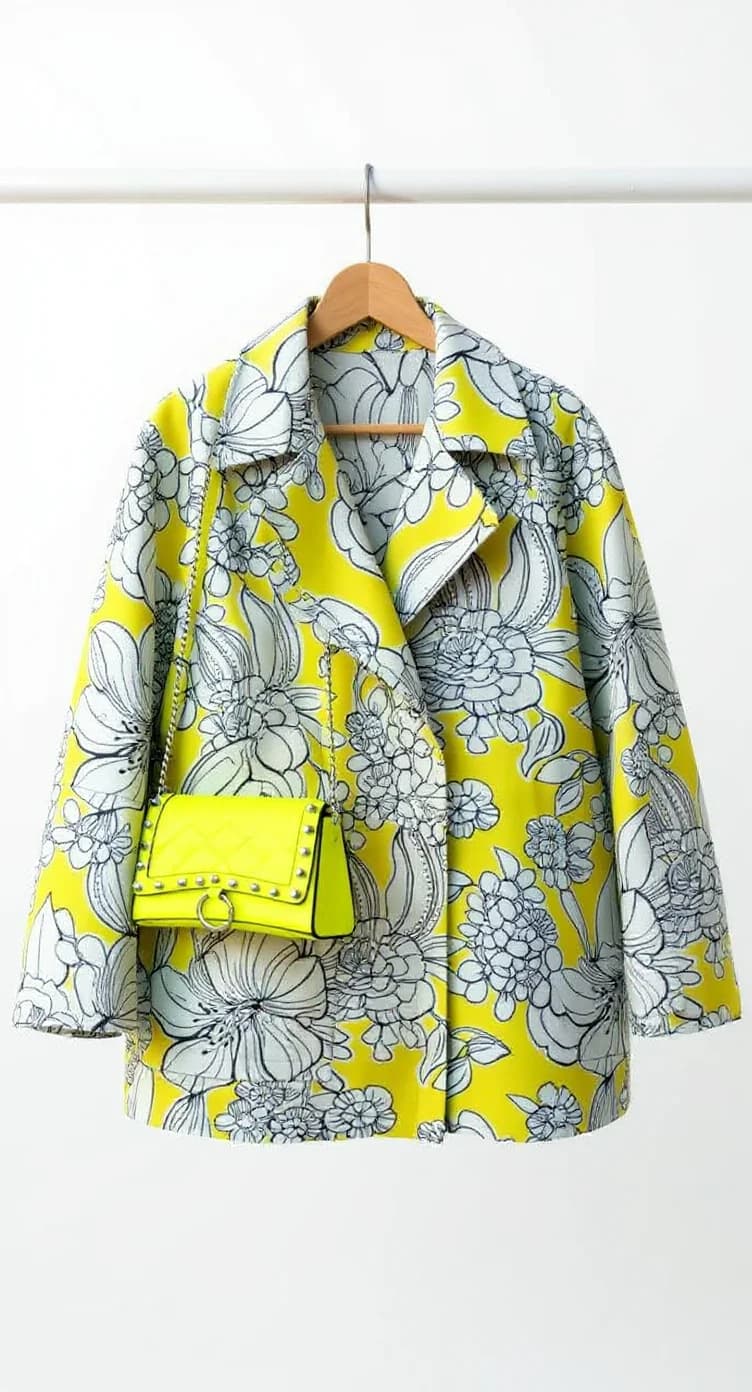










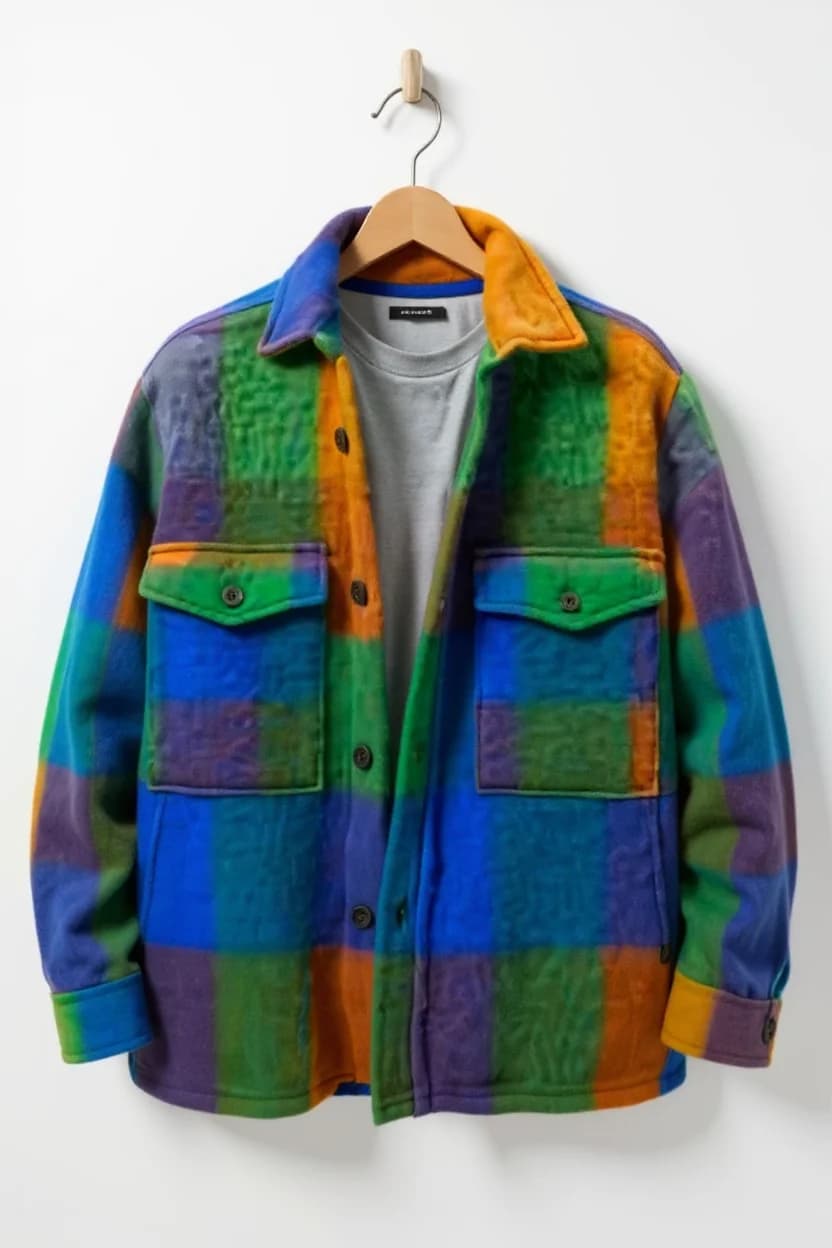

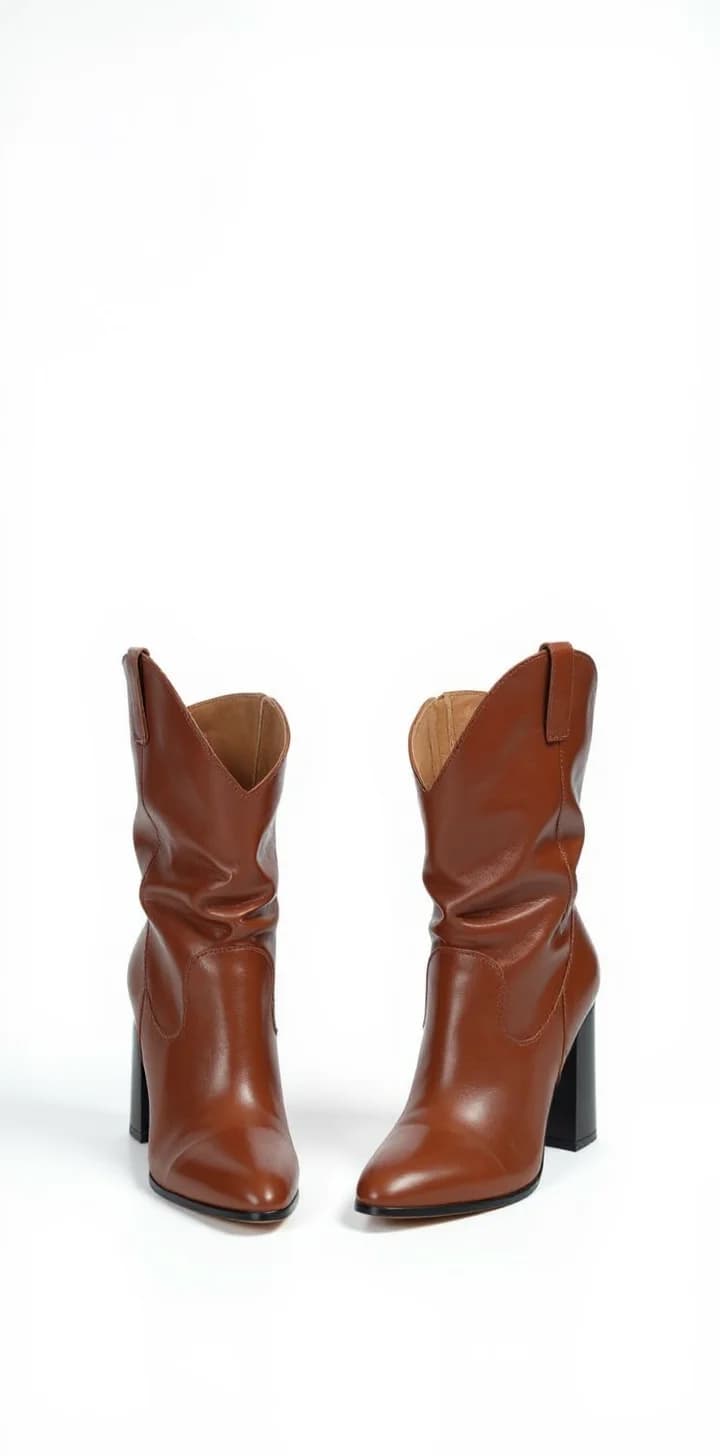

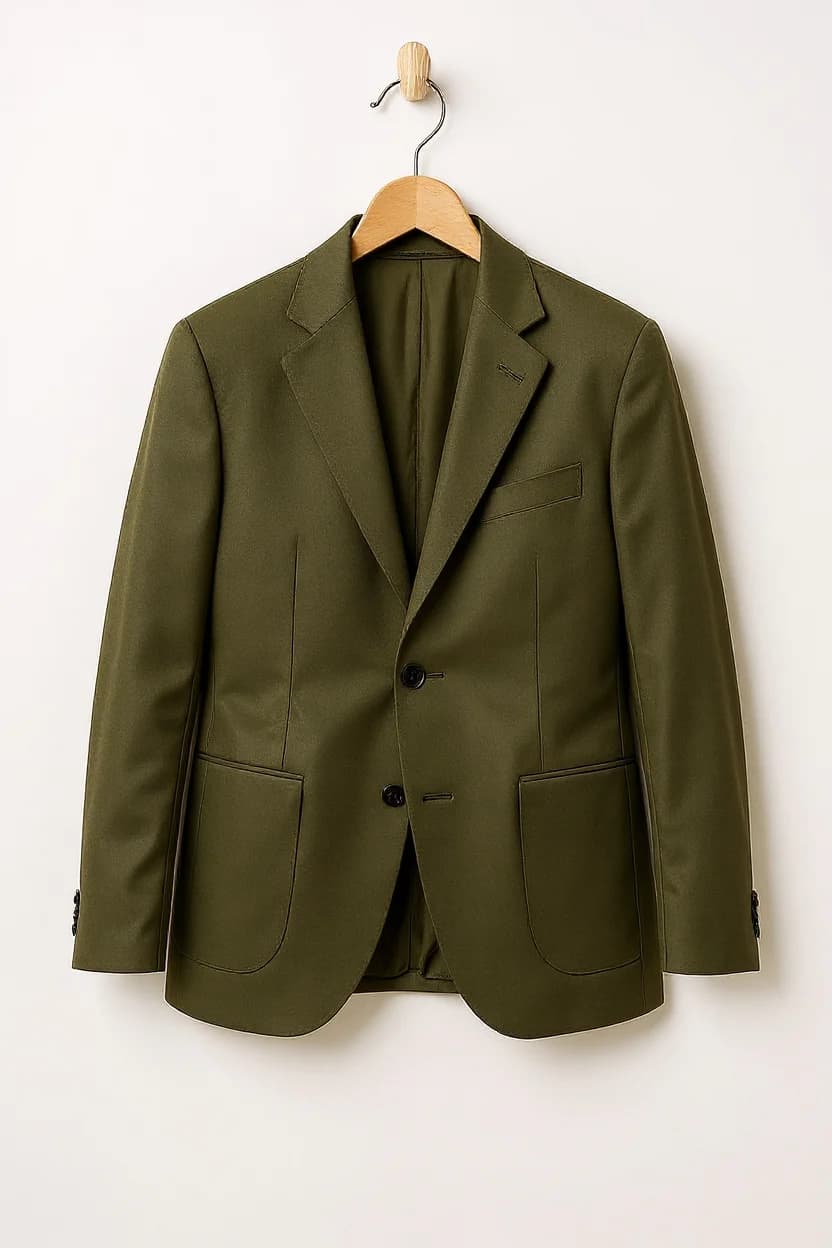

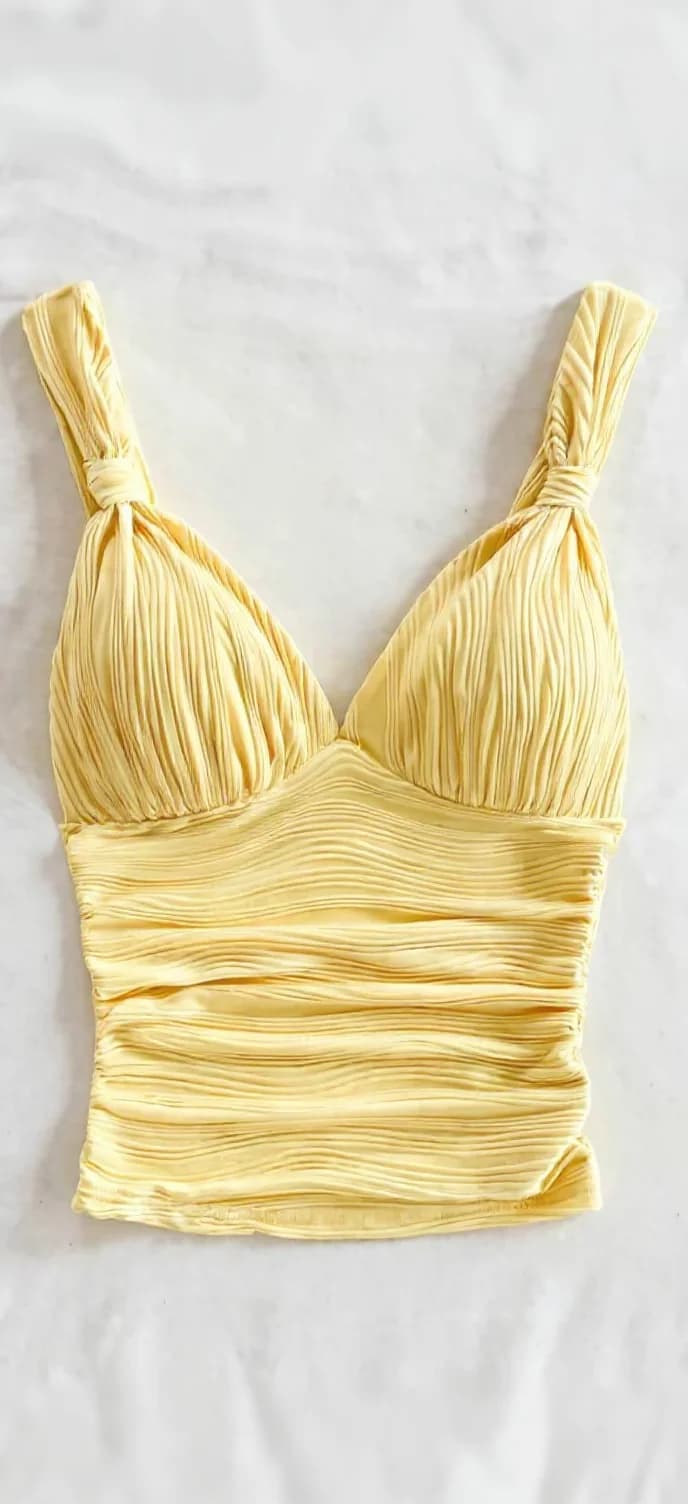

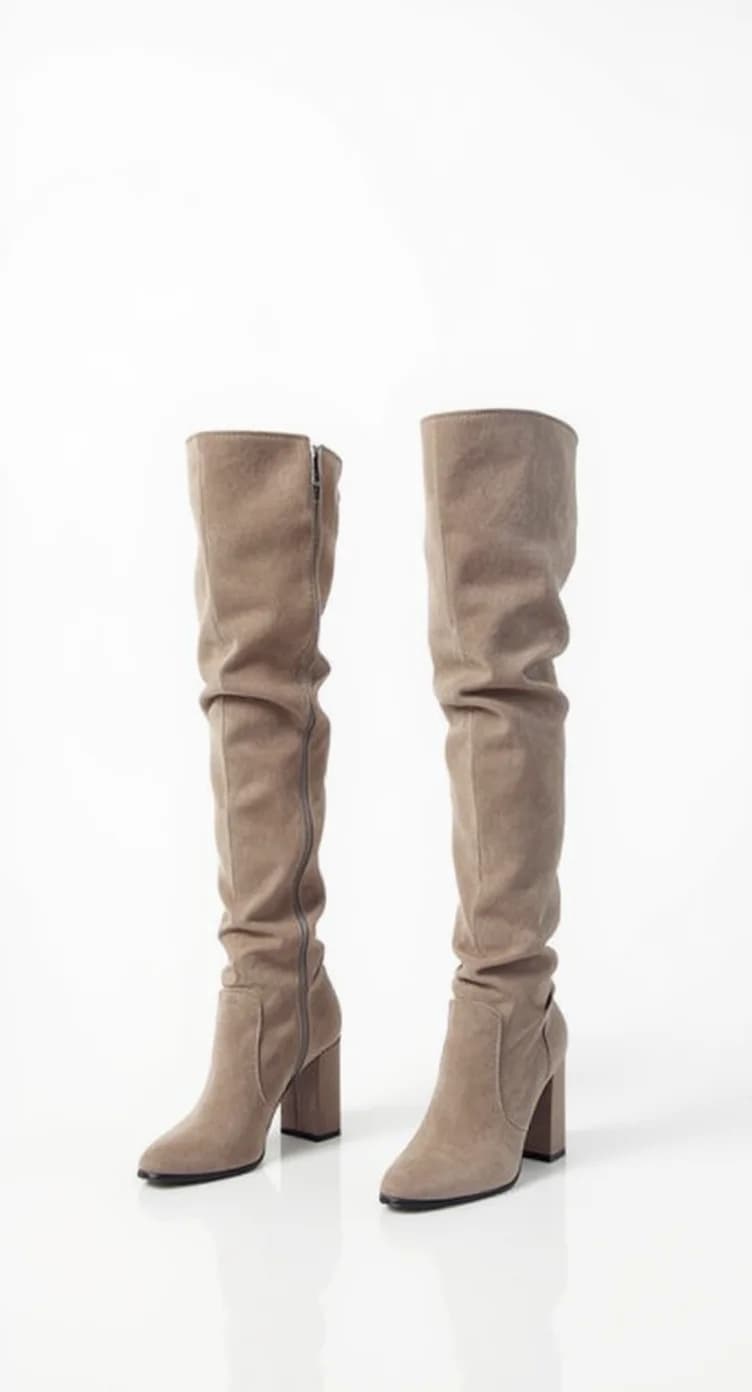
How it works
- 1
Upload the product
Add one to three product photos: a single garment, or several pieces that make up an outfit.
- 2
Choose who wears it
Pick a model from the library, or on a paid plan create a custom model from a reference photo or a description, so you control age, look and style.
- 3
Describe the look
Say how it should be worn and shown: "tucked in, sleeves rolled up, full-body, studio light".
- 4
Compare and keep
Generate a few versions, compare fit and styling, and download the ones you want as PNG.
What virtual try-on is good for
- Seeing a garment on a body before you order samples or book a shoot.
- Showing every colourway on a model without photographing each one.
- Turning flat or hanger photos you already have into on-model images.
- Trying the same product on different models to find the right fit for your audience.
- Styling outfits: combine up to three products in one image.
Using your own models
On paid plans you can create custom models from a reference photo or a text description and reuse them for every product. A custom model is an AI model based on your reference, not an edited copy of the original photo, so you get a consistent person across your catalogue.
Custom models are included from Creator Kickstart (10 models) up to Creator Enterprise (100 models).
Tips for accurate try-on results
- Photograph the product flat or on a hanger in even light, with the whole item in frame.
- Use one product photo per item; for an outfit, add the top, bottom and shoes as separate photos.
- Mention fit in the prompt: oversized, slim, cropped, tucked in.
- Check logos, prints and small details before publishing, and regenerate if something drifted.
Frequently asked questions
Is this the same as a try-on for shoppers?
Fittins AI is made for brands and sellers: it shows your products worn by AI models for your store, ads and social media. It is not a plugin that lets shoppers upload a selfie in your store.
Can I try clothes on a photo of a real person?
You can create a custom model from a reference photo on a paid plan. The result is an AI model based on that photo, not an edit of the original picture. Only use photos you have the right to use.
How many products can I try on at once?
Up to three product photos per generation, for example a top, trousers and shoes.
Can I use the results commercially?
Yes. Content generated with Fittins AI belongs to you, with full commercial rights to use it on your store, in ads and on social media. See the content license for details.
Is there a free plan?
Yes. The free plan includes monthly credits for image generation. Paid plans add more credits, video, higher resolutions and custom models.
Rights and usage: see the content license. More answers in the guides.