

How to Upscale AI Fashion Images to 4K: The Complete Resolution Guide
Learn how to get 4K AI fashion images from Fittins AI by choosing 4K quality when you generate. Covers when 4K is worth it, print DPI requirements, a production workflow, and credit-smart strategies for professional fashion content.

Made with Fittins AI · View this image
AI-generated fashion images are impressive at their default resolution, but the professional world demands more. Magazine spreads require 300 DPI at large physical sizes. Billboard campaigns need enormous pixel counts. E-commerce zoom features must reveal sharp close-up detail without artifacts. And large-format retail displays demand high pixel density to look convincing from arm's length. Fittins AI lets you choose 2K, 4K or 8K quality for images (from Creator Starter), so your generations come out large enough for print and close-up viewing, with room for fine elements like jewelry, stitching, and embroidery.
This comprehensive guide covers everything you need to know about high-resolution output: when it is essential, when it is optional, which quality level fits each use, the technical requirements for every output medium, a production workflow that professional creators use, and advanced strategies for maximizing quality while managing credits efficiently.
When Upscaling Is Essential
Not every image needs upscaling. Understanding when to invest credits in resolution enhancement versus when the default output is sufficient is a key professional skill that saves budget and time.
Print Advertising and Editorial
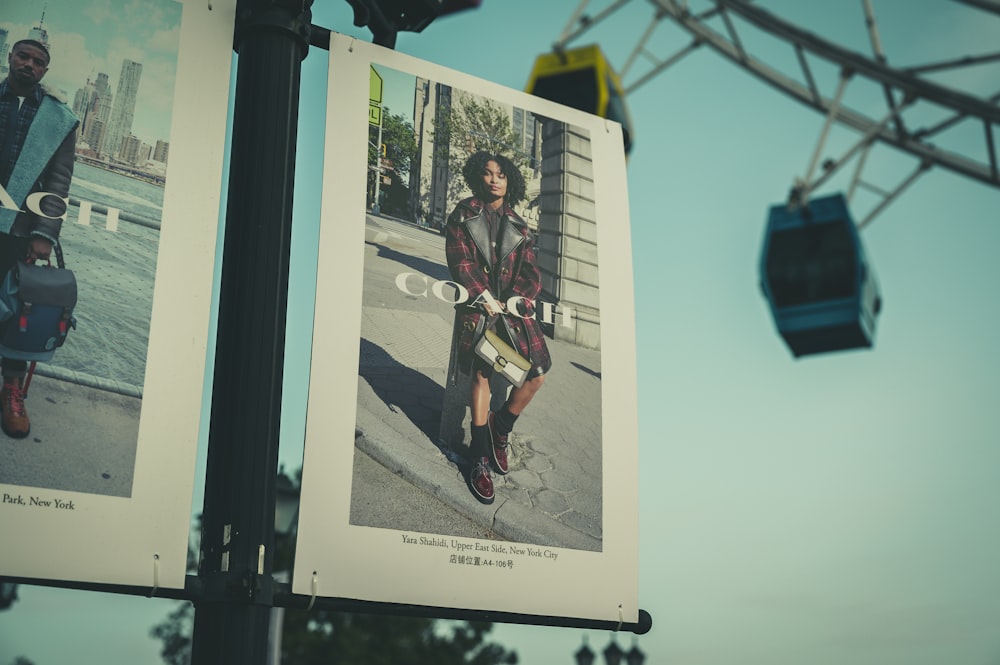
Print is the most demanding medium for resolution. A full-page magazine advertisement in a standard glossy publication requires approximately 2400 x 3300 pixels at 300 DPI. A double-page spread doubles that horizontal dimension. Billboard printing, while typically viewed from distance, still requires substantial pixel counts, especially for transit ads and subway posters where viewers stand close. Without upscaling, AI-generated images at their default resolution will appear soft and pixelated in print at these sizes.
Print Resolution Requirements:
- Magazine full page -- 2400 x 3300 px minimum (300 DPI at 8" x 11"). 4K quality provides comfortable headroom.
- Billboard (48-sheet) -- 4800 x 3200 px at 150 DPI. Choose 8K quality to cover this comfortably.
- Transit/subway poster -- 3600 x 5400 px at 300 DPI. Choose 8K quality.
- Fine art giclée print (24" x 36") -- 7200 x 10800 px at 300 DPI. Even 8K quality falls short, so plan a smaller print size or a lower DPI.
- Fashion lookbook (A4) -- 2480 x 3508 px at 300 DPI. 4K quality provides excellent results.
- Point-of-sale display -- Varies by size, but 150-300 DPI at the physical dimension is standard.
E-Commerce and Product Photography
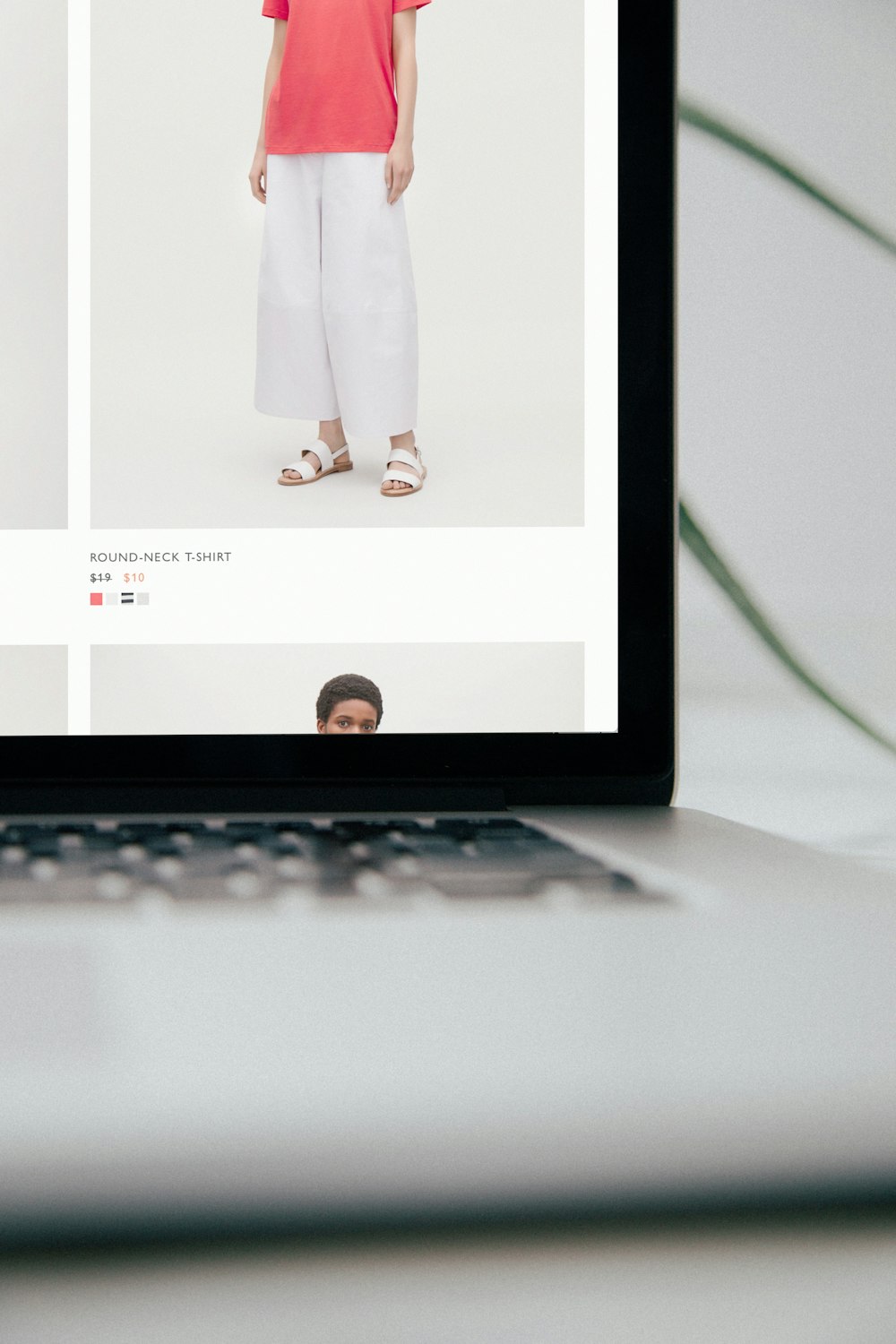
Modern e-commerce platforms offer zoom functionality that reveals fine detail in product images. When customers zoom into a garment, they expect to see fabric weave, stitching patterns, button details, and material texture. If the source image lacks sufficient resolution, the zoomed view reveals ugly pixelation and AI artifacts that destroy buyer confidence. Upscaling to 4K ensures that even aggressive zoom operations on high-resolution displays produce sharp, convincing detail.
E-Commerce Resolution Standards:
- Amazon -- Recommends 2000px on longest side minimum, with zoom requiring 2500px+.
- Shopify product pages -- 2048 x 2048 px recommended for zoom capability.
- Fashion marketplace hero images -- 3000px+ for homepage features and promotional banners.
- Social commerce (Instagram Shop) -- 1080 x 1080 minimum, but 2160 x 2160 looks significantly better on Retina displays.
Large-Format Displays and Retail
Retail signage, trade show banners, window displays, and in-store digital screens all demand high pixel density to look professional from close viewing distances. A life-size window display of a fashion model viewed from one meter away requires significantly higher resolution than a web banner viewed on a laptop. Choosing 4K or 8K quality helps your AI-generated fashion imagery translate from screen to physical retail environments.
Portfolio and Client Presentations
When projecting fashion images on large conference room screens, sending to clients for review on high-resolution monitors, or printing portfolio books, resolution becomes a credibility factor. Low-resolution images in a professional presentation undermine the perceived quality of your work, even if the composition and styling are excellent. Upscaling ensures your AI-generated work presents at the same fidelity as traditional studio photography.
Social Media Preservation
Instagram, Facebook, LinkedIn, and TikTok all compress uploaded images, sometimes aggressively. Starting with a 4K source image means the platform's compression algorithm has more data to work with, producing a significantly better compressed output than a lower-resolution source. The difference is particularly visible on Retina and high-DPI mobile displays, which now account for the vast majority of social media consumption.
The Compression Buffer Principle
Social platforms compress the images you upload. Starting from a high-resolution source gives that compression more detail to work with, so you are "pre-compensating" for platform compression and the final viewed image keeps more of the sharpness and detail you intended.
When Upscaling Is Optional
Not every use case requires 4K. Knowing when to skip upscaling saves credits and speeds up your workflow.
Skip Upscaling When:
- Internal mood boards -- If the image is for creative direction only, default resolution is more than sufficient.
- Social media Stories -- Viewed at 1080 x 1920 on phone screens for a few seconds. Default resolution looks great.
- Email newsletter thumbnails -- Displayed at 300-600px wide. Upscaling would be wasted.
- Quick client concept presentations -- When speed matters more than final polish.
- Brainstorming and iteration -- During the ideation phase, invest credits in generating more variations rather than upscaling fewer concepts.
The Decision Rule
Ask yourself before you generate: "Will this image be viewed at a large size, or will it be scrutinized at close range?" If yes, choose 4K or 8K quality. If no, stay at 1K or 2K and save the credits for another generation. This simple test prevents both under-investing (soft images in demanding contexts) and over-investing (4K images displayed at 300px).
Getting a 4K Image: Step by Step
Getting a 4K image on Fittins AI is part of the normal generation flow. Here is the complete workflow from setup to download.
Set Up Your Generation
Choose your AI model, upload 1 to 3 product photos, and write your prompt. Fittins AI does not upscale existing or uploaded photos, so high resolution is something you choose before you generate. For hero images, pick the model tier you want for the final version: Premium for images from Creator Starter, or Ultra from Creator Business.
Choose Your Quality Level
Select 2K, 4K or 8K quality (available from Creator Starter; 1K is available on every plan). For most fashion content destined for web and social media, 2K provides excellent results at a moderate credit cost. Choose 4K or 8K when you specifically need maximum resolution for large-format print, extreme e-commerce zoom capability, or high-DPI display output. Higher quality uses more credits, but delivers more resolution.
Process and Wait
Start the generation. An image typically takes about a minute, and you can start other generations while you wait, since several can run at the same time.
Compare and Evaluate
When the image is ready, open it full-screen and evaluate the detail. Pay special attention to: fabric texture (should show clear weave and thread detail), facial features (should show natural skin texture without artificial smoothing), edge sharpness (garment edges against background should be crisp, not haloed), and fine details (jewelry, buttons, stitching should be individually resolved). If something is off, adjust the prompt and generate again.
Download the Enhanced Version
Once satisfied with the result, download the image as a PNG. A 4K or 8K file is significantly larger than a 1K file, so ensure your storage and delivery systems can handle the file size, especially for print workflows.
What to Check at High Resolution
Higher resolution gives fine details room to show, and it also makes flaws easier to spot. When you review a 4K or 8K image, check each element type in turn. Here is what to look for in fashion imagery.
What to Check by Element Type:
- Fabric textures -- Look for clear weave patterns, thread visibility, and material texture. Silk should show realistic light play, denim a visible twill, and knits their stitch structure.
- Skin and body -- Look for natural skin texture without artificial smoothing, with realistic tone variations and natural imperfections that contribute to photorealism.
- Hair -- Check that individual strands and flyaway hairs read as hair rather than blurred blobs.
- Jewelry and accessories -- Check metallic reflections, gem facets, and fine chain links. Watch details, ring engravings, and earring structures should be individually visible.
- Stitching and construction -- Check seam lines, topstitching, button threads, zipper teeth, and other garment construction details for clarity.
- Background elements -- Environmental textures (brick, marble, concrete, foliage) should show depth and detail appropriate to their material type.
- Text and logos -- Check that any visible text on garments (brand labels, graphic tees, embroidery) is legible and matches your product.
Quality In, Quality Out
Higher resolution shows whatever is in the image, including any artifacts or imperfections. If a generation has noticeable AI artifacts (merged fingers, inconsistent patterns, blurred details), regenerate a cleaner version, possibly at a higher model tier, before spending credits on 4K or 8K. A high-resolution flawed image is still a flawed image.
Three Choices for Your Final Image
For the absolute best results, professional creators on Fittins AI set up their final generation with three choices made together before they hit Generate: model tier, a photography-focused prompt, and quality. Each one adds something different to the final image.
Generate at Premium or Ultra Tier
Start with the highest model tier you can budget for and your plan includes: Premium for images from Creator Starter, Ultra from Creator Business. Premium and Ultra tiers aim for more accurate fabric, better skin rendering, and more convincing lighting.
Write a Photography-Focused Prompt
Describe the photographic qualities you want in the prompt: natural skin texture, soft directional light, subtle film grain, a real camera and lens. Fittins AI has no separate realism step, so the prompt is where you ask for a photographic look.
Choose 4K Quality
Set quality to 4K (or 8K for the largest prints) before you generate. The final output combines your chosen model tier, your prompt, and high resolution in a single generation.
Why Set It All Up Front
Fittins AI has no step that adds realism or resolution to a finished image, so tier, prompt and quality all belong in the same generation. Decide them before you hit Generate; changing one later means running a new generation, which will produce a different image.
Print DPI Quick Reference Guide
DPI (dots per inch) determines how many pixels are packed into each physical inch of a print. Higher DPI means sharper, more detailed prints but requires more total pixels. Use this reference to calculate whether your source image or upscaled output has sufficient resolution for your target medium.
DPI Requirements by Medium:
- Social media -- 72 DPI (screen standard), but always use high pixel counts for compression resilience.
- Web display (standard monitors) -- 96 DPI. Most web images are fine at default generation resolution.
- Web display (Retina/HiDPI) -- 192 DPI effective. Use 2x resolution for crisp display on modern screens.
- Magazine / catalog print -- 300 DPI at final physical size. The standard for all professional print.
- Newspaper / newsprint -- 150-200 DPI. Lower requirement due to paper absorbency.
- Billboard (large format) -- 72-150 DPI at final size. Viewed from distance, so lower DPI is acceptable.
- Fine art giclée -- 300-600 DPI. The highest quality print standard.
- Packaging and labels -- 300-400 DPI. Must be sharp at close reading distance.
Pixel Calculation Formula:

Required pixels = (Physical size in inches) x (Target DPI)

Examples:
- Full-page magazine ad (8.5" x 11" at 300 DPI):
  8.5 x 300 = 2550 px wide
  11 x 300 = 3300 px tall
  => 4K quality exceeds the requirement

- Trade show banner (6 feet x 3 feet at 150 DPI):
  72" x 150 = 10800 px wide
  36" x 150 = 5400 px tall
  => Choose 8K quality and plan for a slightly lower effective DPI or a smaller banner

- Instagram carousel (1080 x 1080 at 72 DPI):
Default generation resolution is sufficient. No higher quality needed.Credit-Smart Upscaling Strategies
Higher quality settings use more credits, so smart allocation ensures you get maximum value from every credit spent on resolution.
Strategy 1: Reserve 4K for Hero Images
Not every image in a project needs 4K. For a 50-image e-commerce catalog, perhaps only the 8-10 hero images that appear on your homepage, category pages, and promotional banners need 4K treatment. The remaining product images displayed at standard catalog size are fine at 1K or 2K. Identify your "hero" images first, generate only those at 4K, and save significant credits.
Strategy 2: 2K Before 4K
For many use cases, 2K quality provides sufficient resolution at a lower credit cost than 4K. It satisfies most web, social media, and small-format print requirements. Reserve 4K and 8K for the specific cases that genuinely need maximum resolution: large-format print, billboard, and fine art applications.
Strategy 3: Tier First, Resolution Second
A Premium-tier generation at 2K can look better than a Turbo-tier generation at 4K, even though the Turbo file has more pixels. More pixels do not add detail the tier did not render. When resolution quality matters, invest in the model tier first and resolution second.
The Catalog Workflow
For catalog-scale work (50+ images), run your generations one by one (several can run at the same time): generate all images at Default tier and 1K first. Review and identify the 5-10 hero images. Re-generate those heroes at Premium or Ultra with 4K quality. You spend the most credits only where your highest-visibility products need them.

Common Upscaling Mistakes to Avoid
- Expecting a realism filter -- Fittins AI has no realism step for finished images, so ask for a photographic look in your prompt from the start.
- Going high-resolution on unproven prompts -- If test images show visible AI artifacts, fix the prompt or move up a tier before spending credits on 4K or 8K.
- 4K for everything -- Most social media and web use cases are served perfectly by 1K or 2K. Save 4K and 8K for print and large-format.
- Ignoring file size -- 4K and 8K images download as PNG files, which can be large. Ensure your hosting, CDN, and delivery infrastructure can handle these file sizes without degrading user experience.
- Pairing Turbo with 4K -- Turbo generates fast but with reduced detail, and more pixels do not add detail. For any image worth 4K, generate at Default tier minimum.
- Forgetting aspect ratio -- Choose the aspect ratio you need (1:1, 9:16, 16:9, 3:4, 4:3, 3:2 or 2:3) before generating, so you do not waste resolution cropping for print later.
From Screen to Print: Resolution as a Creative Tool
Resolution is not just a technical specification. It is the bridge between a digital creation and its physical or large-format expression. 4K and 8K quality on Fittins AI help your AI fashion imagery perform across media, from a phone screen to a large poster, from an email thumbnail to a fine art print.
By setting up your final generations with the right model tier, a photography-focused prompt and 4K quality, and using credit-smart strategies (high resolution for heroes only, 2K before 4K, tier before resolution), you can produce fashion imagery that meets the most demanding professional resolution standards while managing your budget efficiently.
Resolution is the bridge between a digital image and a physical product. Upscaling ensures your AI fashion imagery performs in every medium, from a phone screen to a Times Square billboard.
— Fittins AI Team