
Master the Fittins AI Image Editor. Learn to change colors, swap garments, replace backgrounds, add accessories, and apply style transfers using natural language instructions. Includes advanced techniques, real-world applications, and professional workflows.
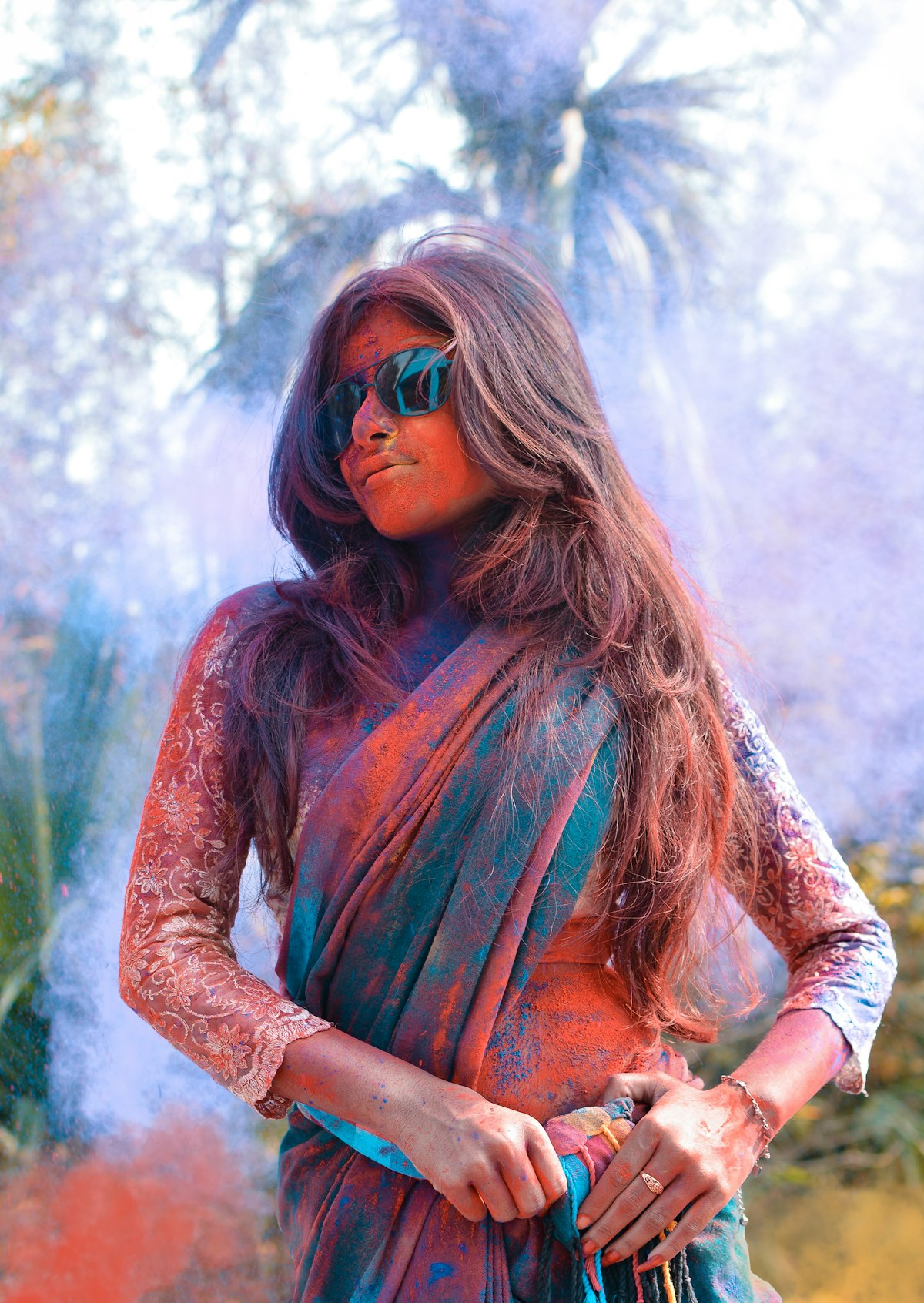
Sometimes you generate a nearly perfect fashion image that just needs one adjustment: a different color, a swapped accessory, a changed background, a modified styling detail. Regenerating from scratch risks losing everything that was already perfect, the pose, the lighting, the composition, the expression. The Fittins AI Image Editor solves this by letting you modify specific elements of an existing image using natural language instructions, preserving everything you want to keep while changing only what you specify.
This guide covers everything you need to master the Image Editor: what it can do, how to write effective edit instructions, the step-by-step workflow, advanced techniques for complex transformations, real-world applications that save enormous time and credits, and the professional strategies that top creators use to maximize their editing efficiency.
The Image Editor uses natural language understanding to interpret your edit instructions and apply targeted modifications to existing images. It understands fashion concepts, spatial relationships, color theory, and stylistic intent, which means you can describe your edits the way a fashion professional would describe them to a retoucher.
The most common and reliable edit type. Change the color of any garment, accessory, or element while maintaining all other aspects of the image: composition, lighting, pose, and surrounding details.
Color Edit Examples:
Replace one garment type with another while maintaining the model's pose, the environment, and all other visual elements.
Garment Swap Examples:
Move your fashion subject to an entirely different environment without affecting the model, garments, or lighting on the subject.
Background Edit Examples:
Accessory Edit Examples:
Style Edit Examples:
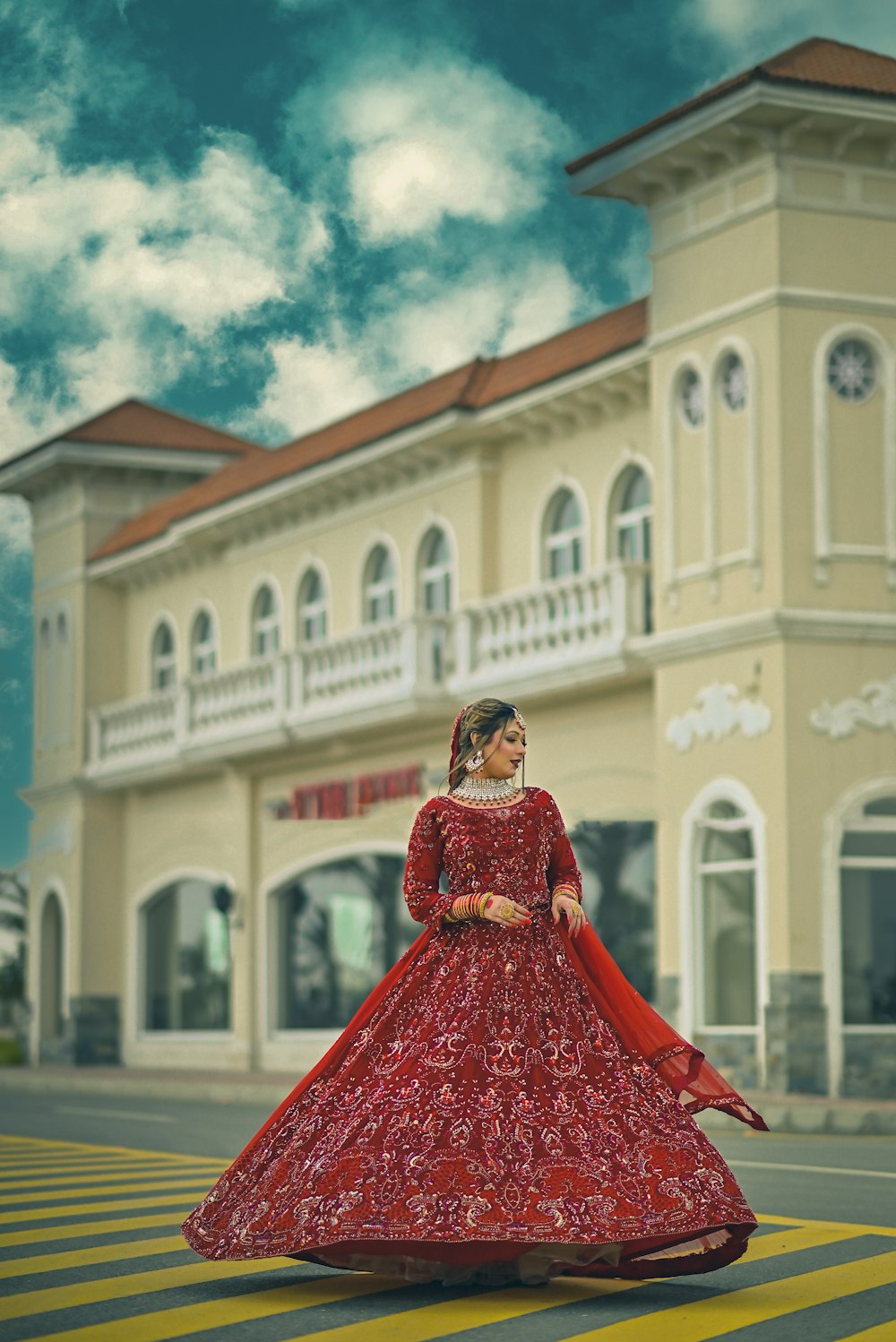
Navigate to your project gallery and choose the image you want to edit. This becomes the base that the Image Editor will modify. The clearer and higher-quality your source, the better the edit results. Premium and Ultra tier generations produce the best editing source material because they contain more detail for the editor to preserve.
Describe your desired change in natural language. The key to great edits is specificity. Be clear about what should change AND what should remain the same. The more precisely you describe the edit, the more accurately the editor executes it.
Compare the edited image with the original. Check that the intended change was applied correctly and that no unintended modifications occurred elsewhere in the image. Pay attention to: the edit region (is the change accurate?), the preservation regions (is everything else untouched?), and the transition boundaries (is the blend between edited and preserved regions natural?).
For complex transformations, make one change at a time rather than requesting multiple modifications simultaneously. This gives you fine-grained control and allows you to verify each change before proceeding to the next. Think of it like layers in traditional photo editing software: build up to your desired final image incrementally.
The One-Change-at-a-Time Rule
Resist the temptation to request five changes in a single edit. "Change the dress to blue, remove the necklace, add a hat, change the background, and make it brighter" will produce unpredictable results because the editor must make too many simultaneous decisions. Instead, make each change as a separate edit operation. The total cost is similar, but the quality and predictability are dramatically better.
The quality of your edit is directly proportional to the quality of your instruction. Here are the principles that produce the most accurate, reliable edits.
Vague (unpredictable results):
"Make the outfit different"

Specific (reliable results):
"Change the red silk wrap dress to a navy blue tailored
blazer and white cotton blouse, maintaining the same pose
and lighting"

Vague:
"Change the background"

Specific:
"Replace the white studio background with a sun-drenched
Mediterranean stone terrace overlooking the sea, warm
afternoon light"Explicitly telling the editor what to preserve is often as important as describing what to change. This acts as a guardrail that prevents unintended modifications.
Good edit instruction:
"Change only the dress color from red to emerald green.
Keep everything else exactly the same: the pose, lighting,
background, hairstyle, makeup, and accessories should
remain identical."
The editor understands fashion terminology. Use professional vocabulary for more precise results: "matte" vs "glossy," "structured" vs "flowing," "V-neck" vs "crew neck," "ankle boots" vs "knee-high boots." The more fashion-specific your language, the more fashion-accurate the edit.
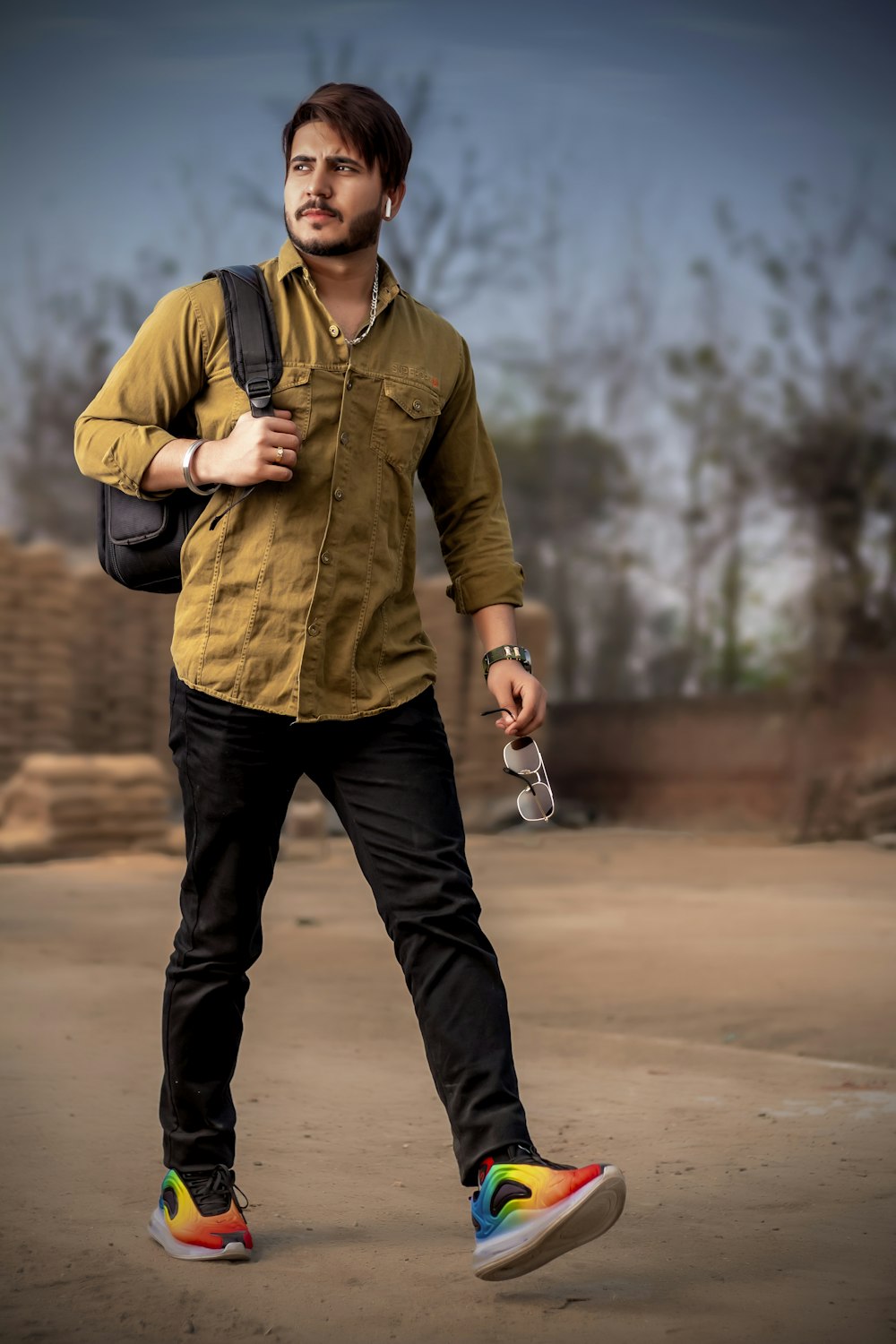
The most powerful practical application of the Image Editor is generating color variants for e-commerce product pages. If you have a product shot of a jacket in navy, you can use the editor to create the same jacket in black, tan, olive, and burgundy without regenerating five separate images from scratch. The model, pose, lighting, and composition remain identical, which is exactly what product pages need for a professional, consistent shopping experience.
E-Commerce Efficiency in Numbers
A fashion brand used the Image Editor to generate 6 color variants of each of their 40 core products. That is 240 product images created from just 40 original generations, a 6x efficiency gain with perfect visual consistency across every variant. The alternative (regenerating 240 separate images) would have cost 6x more in credits and produced inconsistent poses, lighting, and compositions that would require additional curation time.
Take your spring campaign imagery and edit the backgrounds to autumn settings: golden leaves, warm ambient tones, layered scarves. Or transform summer beach photography into winter wonderland scenes. This allows brands to repurpose their best visual content across seasons without re-shooting or regenerating the core fashion content.
Test which visual elements perform better in advertising and social media by creating controlled variants. Does the blue version of a dress get more engagement than the red? Does a studio background convert better than a lifestyle setting? The Image Editor creates perfect A/B test pairs where only the variable under test changes, giving you clean performance data.
When a client says "love the image, but can we see it in forest green instead of navy?" the Image Editor handles this in seconds. No need to rebuild the entire generation from scratch, risking loss of the composition the client already approved. Edit only what the client requests and maintain everything they already loved.
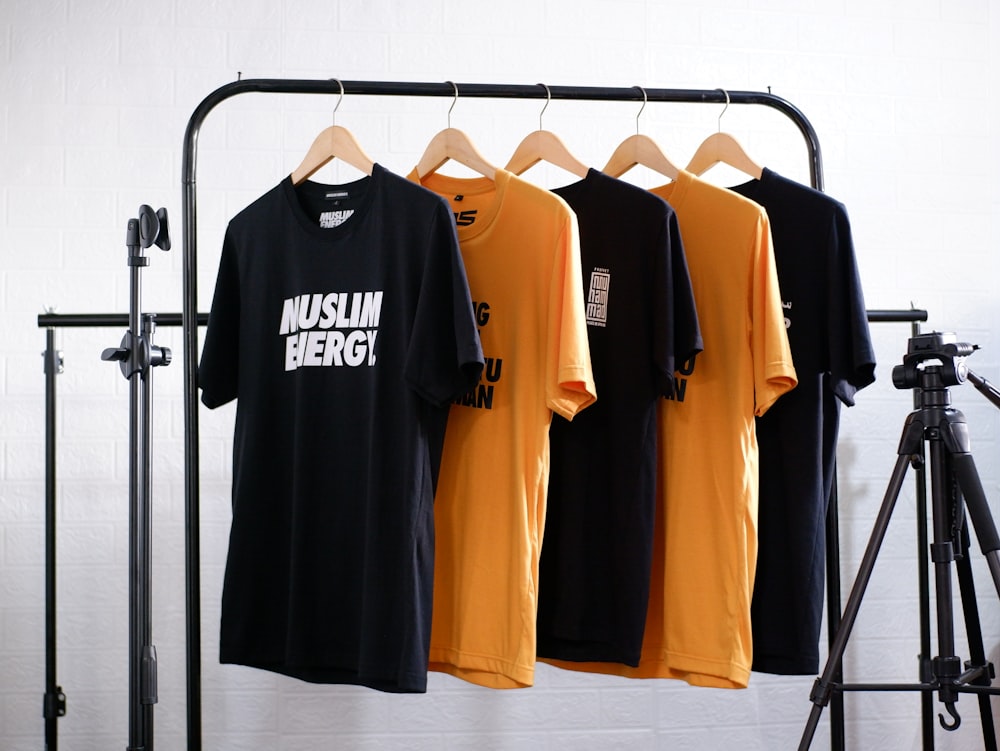
For complex transformations that involve multiple changes, use chained edits where each edit builds on the result of the previous one. Start with the largest change first, verify the result, then make progressively smaller refinements.
Example Chain:
The Image Editor understands material properties, not just colors. You can change both the material and color simultaneously: "Change the cotton blazer to a black velvet blazer" or "Replace the matte leather bag with a glossy patent leather bag in cherry red." The editor adjusts light reflections, surface texture, and drape behavior to match the new material.
Beyond simple background swaps, you can modify the time of day and season: "Change the harsh midday sun to soft golden-hour evening light" or "Add a light autumn drizzle with wet reflections on the street." These temporal edits transform the entire mood while preserving the fashion subject.
The Preservation Priority
When edits produce slightly unexpected results, the issue is almost always that the instruction was not explicit enough about what to preserve. Before submitting any edit, check: did I specify what should NOT change? Adding "keep the model's pose, expression, hairstyle, and makeup exactly the same" to your instruction prevents the most common unintended modification issues.
The Image Editor transforms your creative workflow from "generate and hope" to "generate and refine." Every nearly-perfect image can become actually perfect with a targeted edit. Every approved composition can be explored in multiple colorways. Every campaign concept can be adapted to different seasons, settings, and contexts without starting from scratch.
Master the art of specific edit instructions, adopt the one-change-at-a-time discipline, and use chained edits for complex transformations. The result is a dramatically more efficient workflow that produces higher-quality outputs at lower total credit cost.
The best edit is the one that changes exactly what you asked for and nothing else. Specificity in your instructions is the key to predictable, professional results.
— Fittins AI Team